This is the written version of Setting up Python, taken from the lesson itself. The simulations, drag-and-drop activities and quizzes only work in the interactive lesson.
Start hereWhy we start in Colab
You don't need to install anything. Not today, maybe not ever.
Some of you have a Mac. Some have Windows. Installing Python is a different fight on each one, and it often breaks. Colab skips all of that. It runs on Google's computer, not yours.
Installing Python yourself
Different steps on Mac and Windows. One typo and it breaks. Can eat a whole hour.
Google Colab
One link. The same steps for everyone. Ready in under a minute.
Step by stepOpen Google Colab
Four clicks. Same four clicks whether you're on a Mac or a Windows laptop.
- 1 Open your browser Chrome, Safari, Edge — any of them works.
- 2 Go to colab.research.google.com Type the address, or use the button below.
- 3 Sign in with a Google account Use one you already have. No account? Make a free one in a minute.
- 4 Click "New notebook" It’s on the welcome screen. A blank notebook opens, ready for code.
colab.research.google.com
A blank notebook
This is what you'll see after step 4. One empty grey box, waiting for code.
Your first codeSay hello to Python
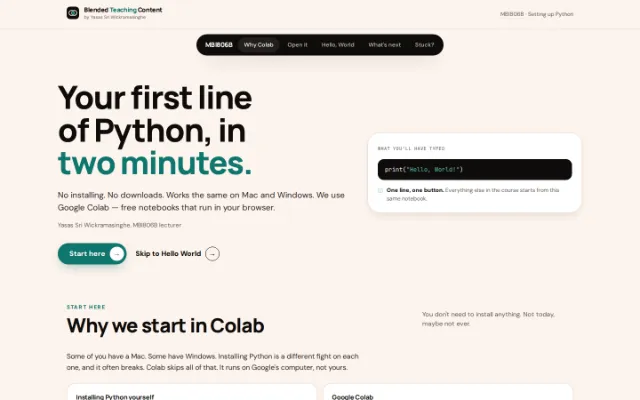
One line. One button. Try it right here first.
- 1 Click inside the empty grey box That's a code cell. It's where Python code goes.
- 2 Type the line below, exactly Quotes, brackets and capital letters all matter.
- 3 Press ▶, or Shift + Enter Python reads your line and prints the answer right below it.
print("Hello, World!")Try it for real: in your own notebook, change the words between the quotes and run it again. Your own message appears.
Where this goesFrom one line to real predictions
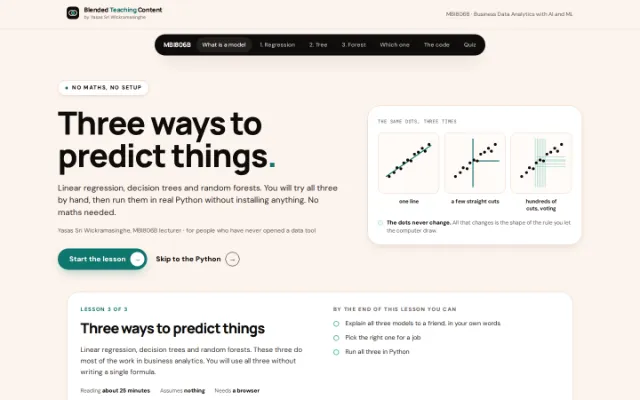
This same notebook is where we try three simple ways computers learn to predict things.
Linear regression
Draw the straightest line through your data, then use it to guess the next point.
Decision tree
A tree of yes/no questions that sorts your data into an answer.
Random forest
Many decision trees voting together, usually more accurate than just one.
Stuck?When it goes wrong
These four come up every year. None of them are your fault.
I don’t have a Google account
Make one free at accounts.google.com. Two minutes, no cost, no card needed.
Nothing happens when I press Run
Wait a few seconds. Colab is connecting you to a computer in the cloud.
I closed the tab. Is my work gone?
No. Open Colab again, click File, then Open notebook, then Recent.
My work laptop won’t let me sign in
Colab needs no install and no admin rights. If sign-in itself is blocked, bring it to class.
LinksWhere to go from here
Bookmark the first one. You'll open it every week.
- Google Colab Where every step on this page happens. Free, no install.
- Make a free Google account Only needed if you don’t already have one.
- Three ways to predict things The next lesson: linear regression, decision trees and random forests, explained with no maths.
- scikit-learn The Python library behind all three models. Already installed in every Colab notebook.
Your lecturerBring a laptop and a Google account.
That's genuinely everything you need. If Colab won't open, or the sign-in step gets stuck, come and ask me. It's faster to fix in person than to fight it alone the night before class.
Yasas Sri Wickramasinghe MBI806B lecturer